 Rink Rocks
Home / Guides / Choose how goals are announced
Guide 7 · 4 minutesChoose how goals are announced
Go to Settings, then DJ Settings, and pick Music First, Announcement First or Announce Later under Goal Announcements. Announce Later splits the bottom bar into GOAL and Announce, so the horn and song play right away and the scorer is called when you choose. Each team keeps its own setting.
What are the three ways to announce a goal?
- Music First: the horn, then the goal song, and the announcer calls the scorer over the song a couple of seconds in. This is the default.
- Announcement First: the horn, then the call, then the goal song.
- Announce Later: the horn and goal song right away with no voice. You call the scorer yourself when you're ready, usually during the stoppage before the faceoff, the way an arena announcer does.
Hear the difference. Both clips use the same horn, song and announcer.
With the music (Music First)The call comes in two seconds after the horn, and the song dips under it.
Announce LaterThe horn and song play on their own. The call comes when the DJ taps Announce, and the song keeps playing under it.
Demo music: "Secret Agent Rock" by John Bartmann, public domain (CC0).
How do I change it?
Tap Settings, then DJ Settings. Under Goal Announcements, tap the style you want. It saves on its own.
The slider underneath sets how far the music drops while the announcer talks. With Music First you also set how long the song plays before the call.
Announcer too quick? Move Announcer pace to the left and tap Hear it. It slows every goal call, assist and the one minute call without changing the voice's pitch, and nothing needs re-recording.
Good to know: the setting belongs to the team, so every DJ on that team gets the same style. If you run more than one team, switch teams at the top of the screen and set each one.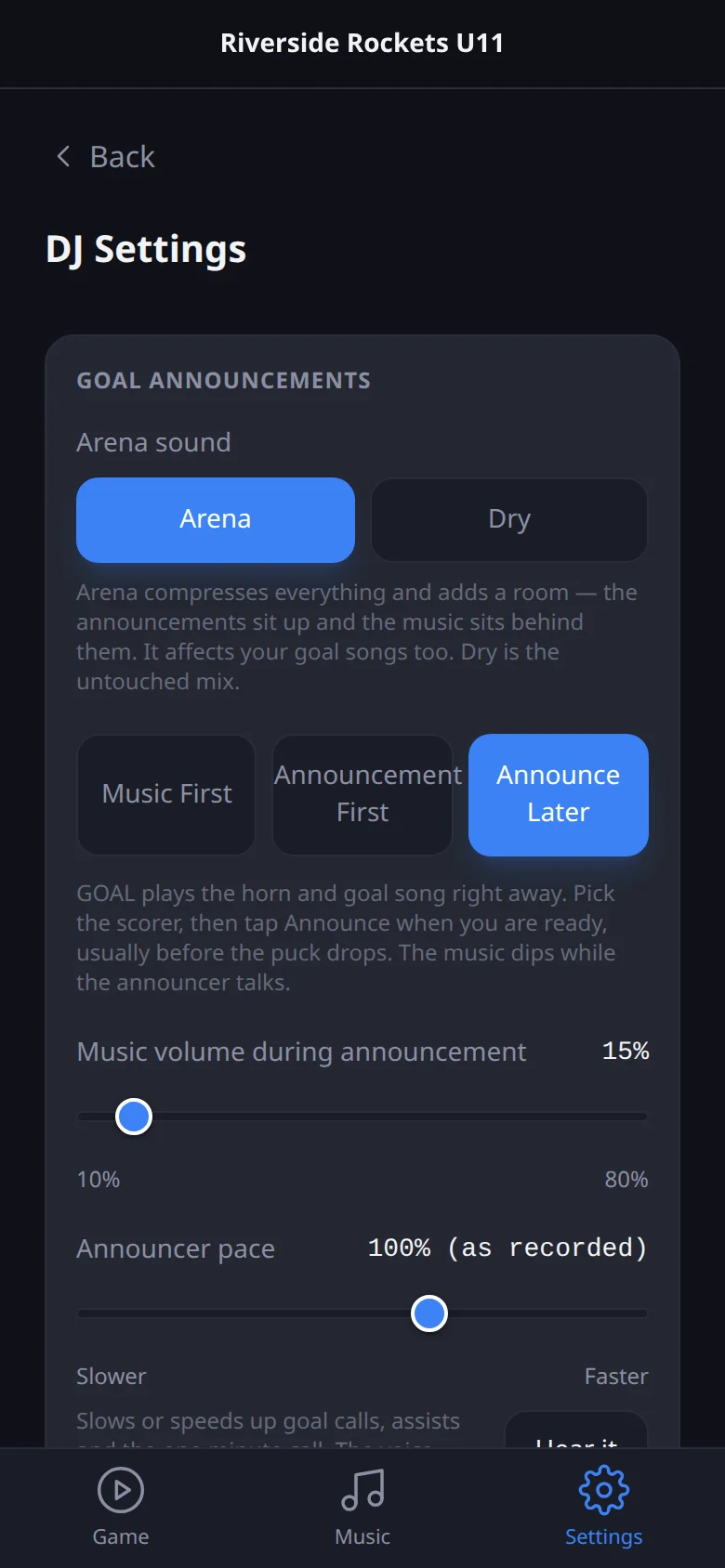
How do I call a goal with Announce Later?
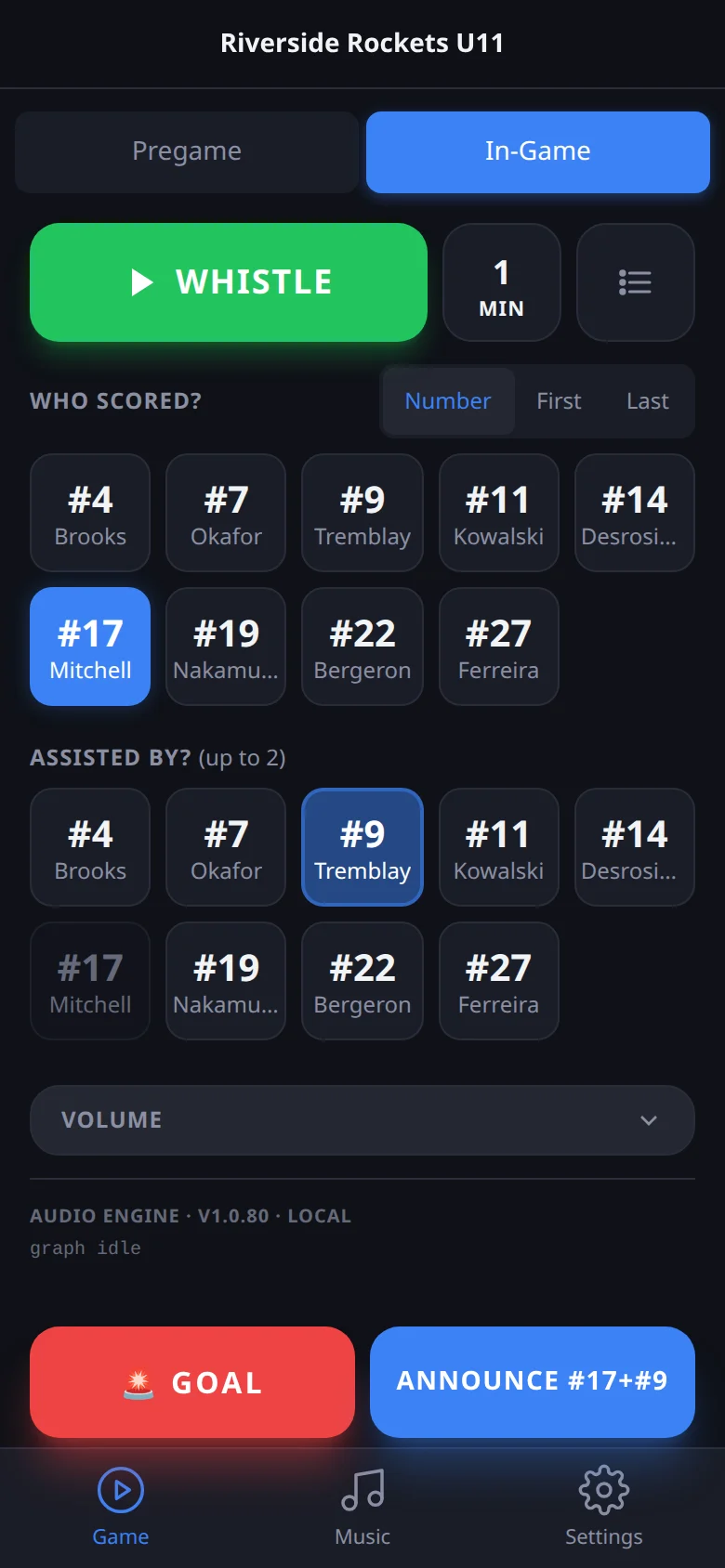
On the In-Game screen the bottom bar splits in two. When the puck goes in, tap GOAL: the horn and goal song play straight away. You don't need to pick anyone first.
While the team celebrates, tap the scorer under Who Scored? and up to two assists under Assisted By?. The right-hand button changes to Announce #17+#9+#11. Tap it when you're ready. The music dips while the announcer talks, then comes back up.
Puck Drop still ends everything, the announcement included. After the call plays, the scorer and assists clear for the next goal.
How do I add the one minute left call?
Tap Settings, then your team, and scroll to One Minute Left. Type what the announcer should say, for example "Last minute of play in the period." Then generate it in the arena announcer voice, record it yourself, or upload a file, and save.
The text starts with a note in square brackets, like [Canadian hockey arena announcer, calm and clear]. That tells the voice how to sound and isn't spoken. Leave it in front of your words.
Once it's saved, a 1 MIN button appears next to Whistle on the In-Game screen. Tap it when the clock hits one minute. It plays over whatever is on, with the music dipped, and works with any goal style.
No button? Owners and DJs can save the call. After saving, open Game and tap Load Game Audio so your phone has the new clip.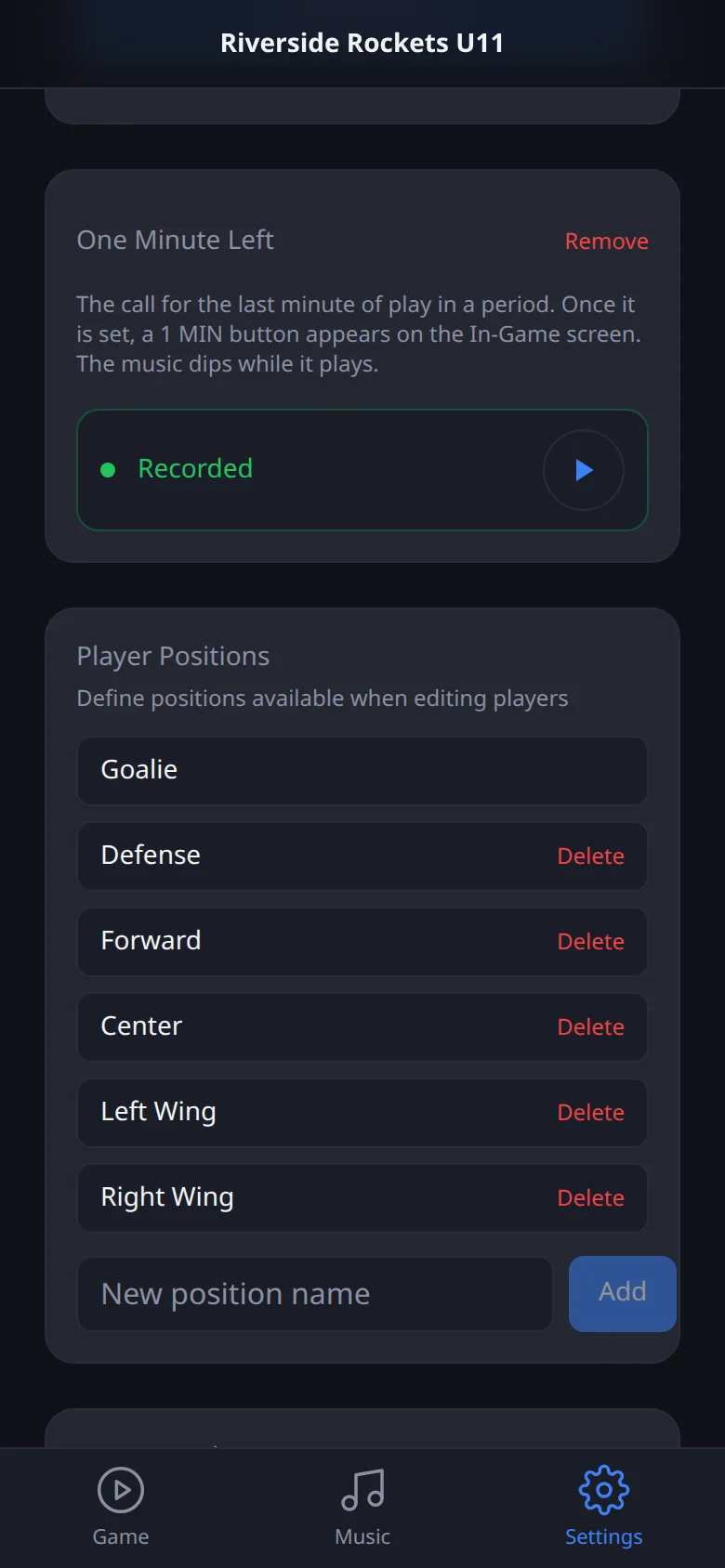
Questions
Can the announcer call the scorer after the celebration instead of during it?
Can a goal have two assists?
Does Announce stop the goal song?
Is the goal announcement setting per team or per phone?
Can I slow the announcer down?
Who can set up the one minute left call?
Screens and video checked against the app on 2026-11-12.