 Rink Rocks
Home / Guides / Build your pregame and in-game playlists
Guide 4 · 3 minutesBuild your pregame and in-game playlists
Open Music, then Playlists, and tap Create New Playlist. Name it, tap Add Songs, and drag songs into order. Make one playlist for warm-up and one for stoppages, then pick each one on the Game screen.
Create a playlist
Tap Music, then Playlists, then Create New Playlist. Tap the name at the top and call it something you'll spot quickly, like Warm-Up or Whistles.
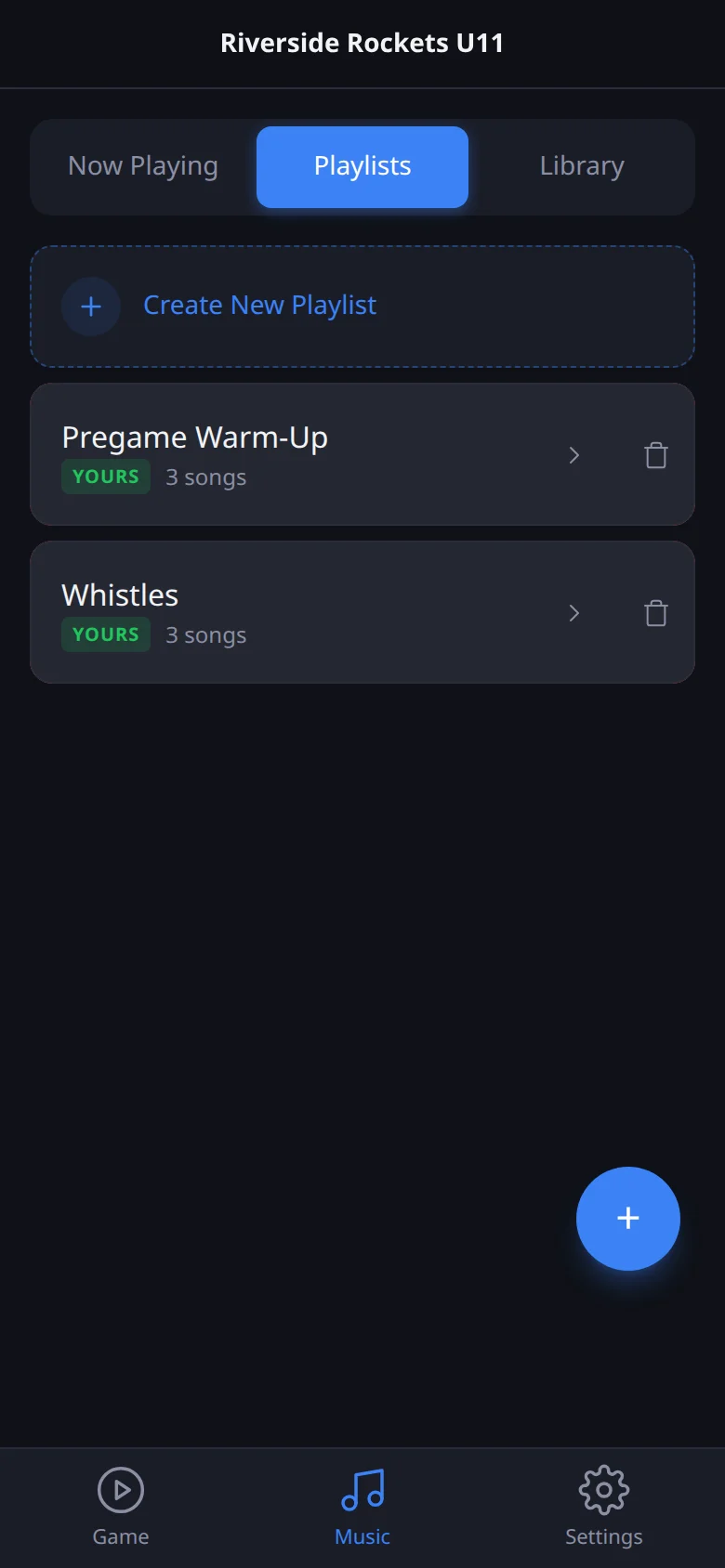
Add songs and put them in order
Tap + Add Songs, search, and tap each song to add it. Drag the handle on the left of a row to move it. Tap the × to take one out.
You can also add a song from the library: tap the add button on any song row and choose the playlist.
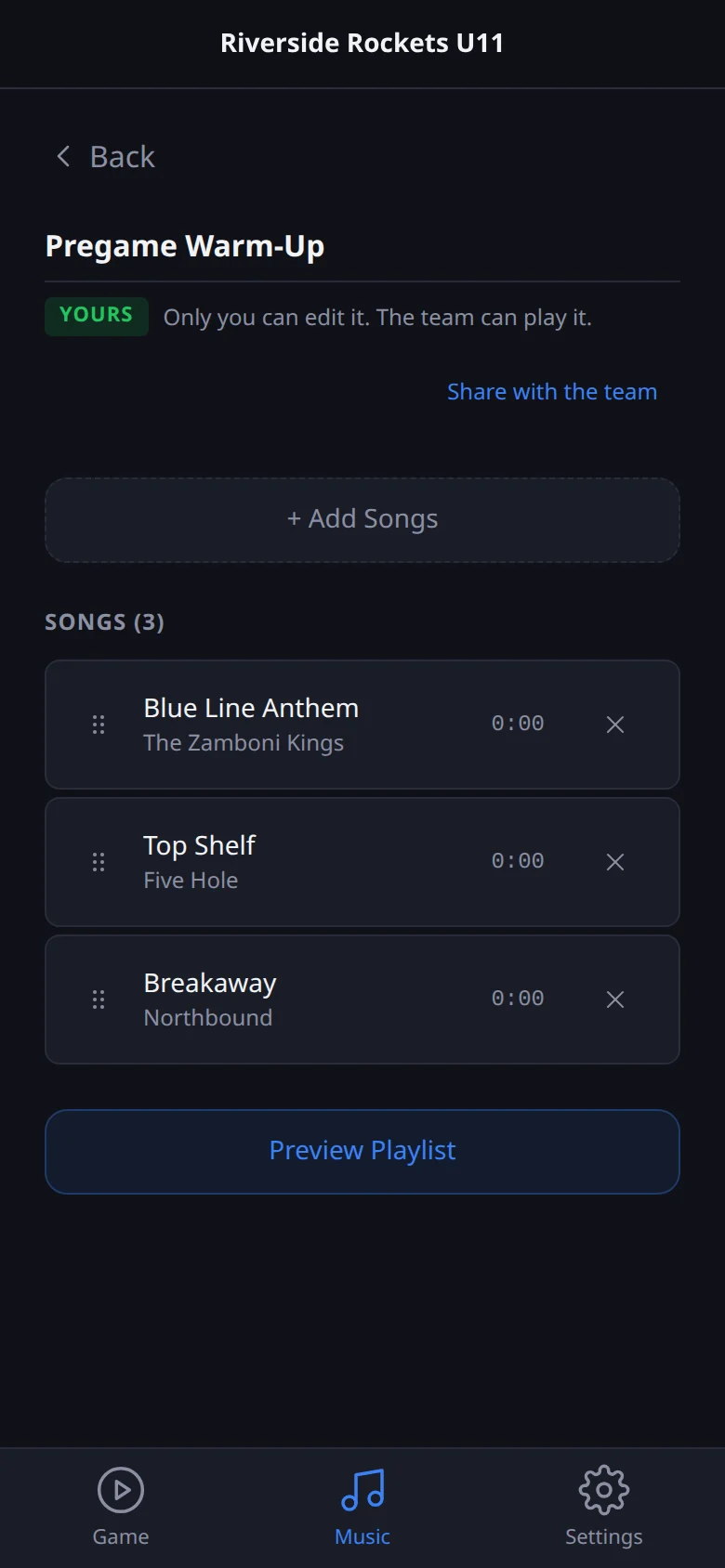
Set a start time just for this playlist
Tap the time on a song's row to open its slider. Whatever you set here only applies in this playlist. Use the team's time puts it back to the song's normal start time.
Share it with the team
A new playlist is yours. Team admins can tap Share with the team so any DJ on the team can edit it. If a playlist belongs to someone else, Make my own copy gives you one to change.
Two playlists is the sweet spot: one for warm-up, played from the top of each song, and one for whistles, which uses each song's start time.
Screens and video checked against the app on 2026-10-18.