 Rink Rocks
Home / Guides / Add your players and their goal calls
Guide 2 · 4 minutesAdd your players and their goal calls
Go to Settings, your team, then Players, and tap the plus button. Enter the jersey number and name. Rink Rocks records the announcer calls for that player on its own, and you can fix how a name is pronounced under How the announcer says it.
Open your roster
Go to Settings, tap your team, then tap Players. Goalies are listed first, then skaters.
A player with a green dot is ready to be announced. No voice means their announcement still needs recording.
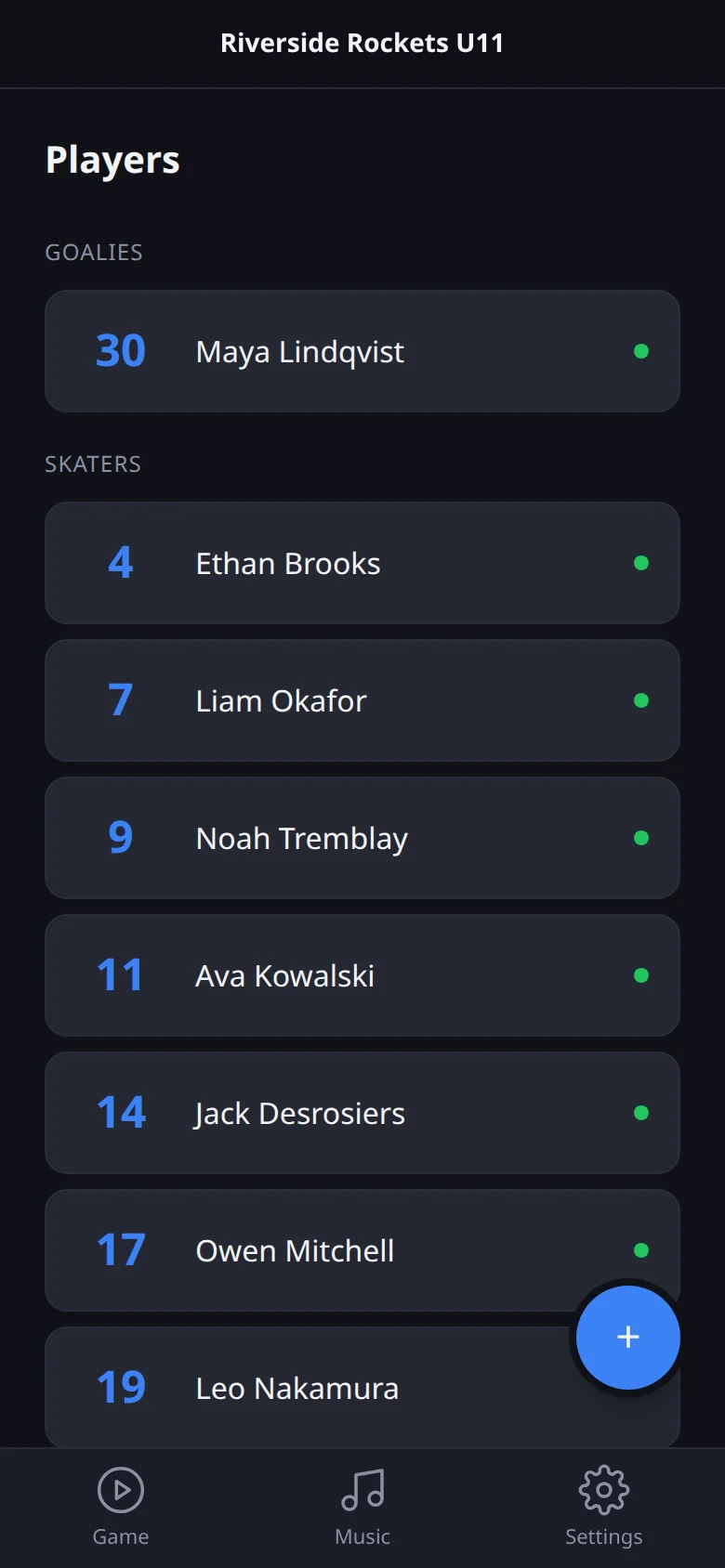
Add a player
Tap the + button. Enter the Jersey Number, pick the Position, and type the first and last name. Tap Add Player.
Rink Rocks records the announcer saying that player's name for you. Give it a few seconds.
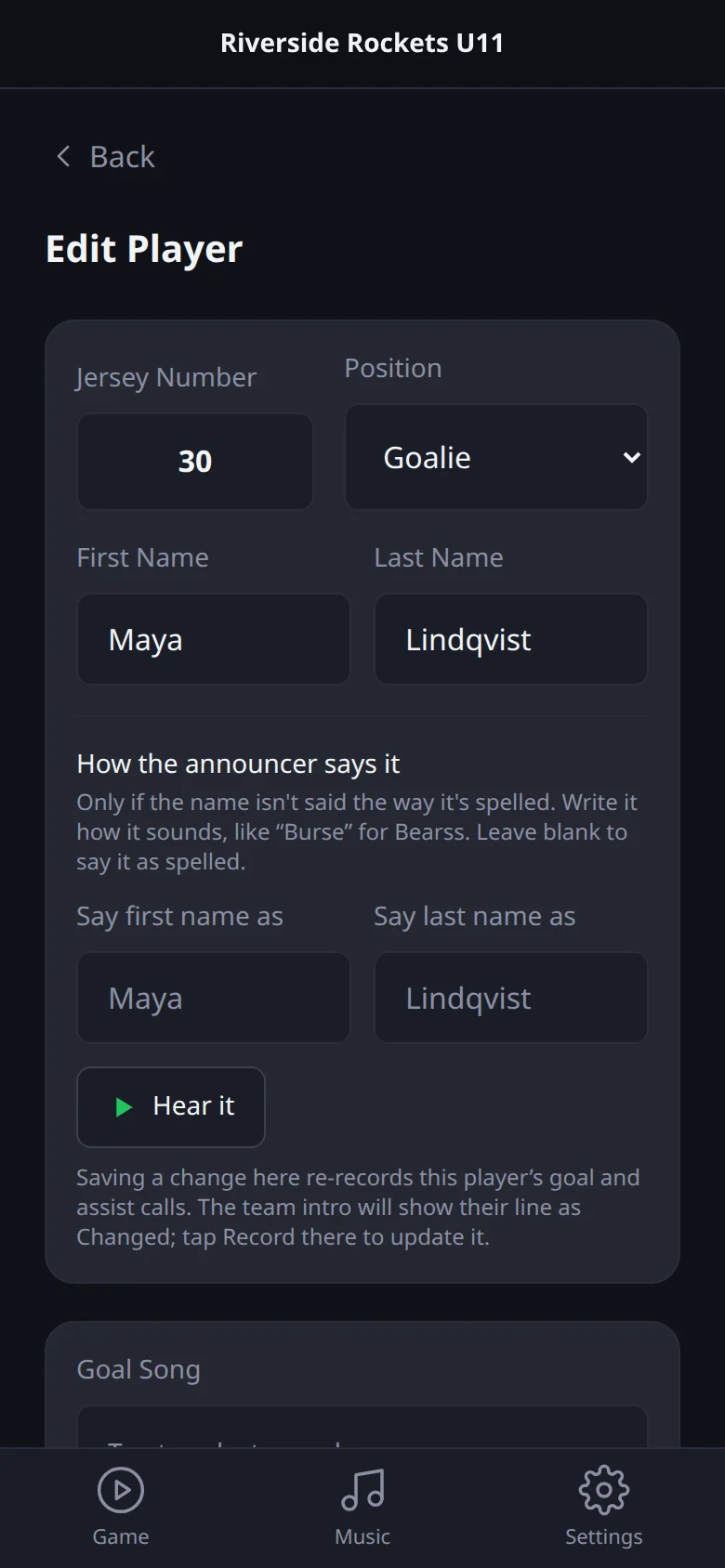
Make sure the name is said right
Open the player again. Under How the announcer says it, write the name the way it sounds, like "Burse" for Bearss, and tap Hear it to check.
The spelling everyone sees doesn't change. When you tap Save Changes, that player's goal and assist calls are re-recorded with the new pronunciation.
Give them a goal song (optional)
Tap Tap to select a goal song and pick a song from your library. A start-time editor appears so the song kicks in at the good part, not the quiet intro.
Players without their own song use the team's default goal song.
Good to know: Goalies don't appear in the In-Game scorer grid, so the buttons you need during a game stay big.
Screens and video checked against the app on 2026-10-18.