 Rink Rocks
Home / Guides / Create your account and your team
Guide 1 · 2 minutesCreate your account and your team
Sign up with your email, confirm it, then tap Create a team and give it a name. Everything else in Rink Rocks (players, music, playlists) belongs to that team, and you can invite other DJs to share it.
Make your account
Open Rink Rocks and tap Create an account. Enter your email and a password, then tap Create Account.
We send you a link to confirm your email. Tap it, come back, and sign in.
Tip: You need Wi-Fi or data to sign in the first time. After that the app works at the rink without a signal.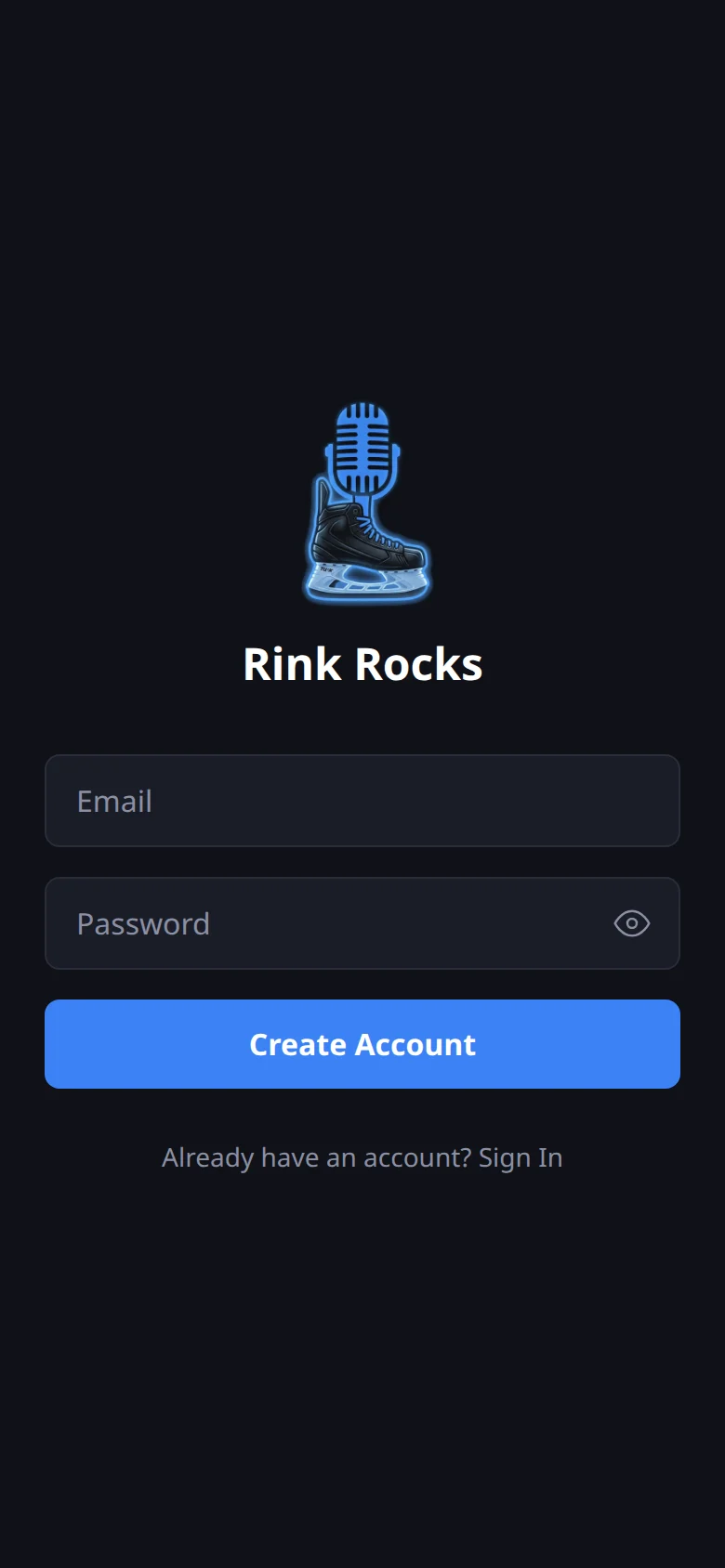
Create the team
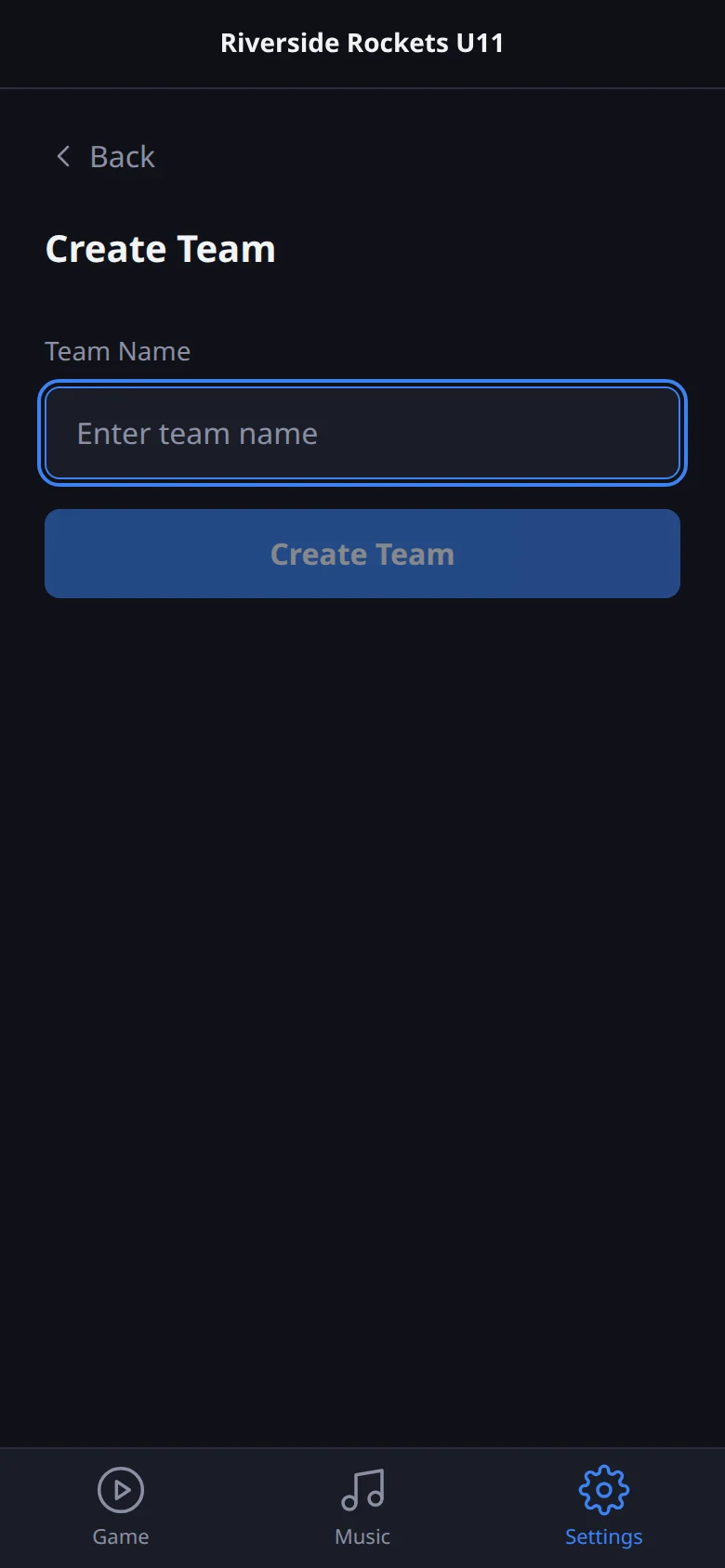
The first time you sign in you'll see You are not on a team yet. Tap Create a team, type the team name the way you want it announced, and tap Create Team.
You're now the team's owner, and the app takes you straight to your roster.
Add a logo and pick a goal horn
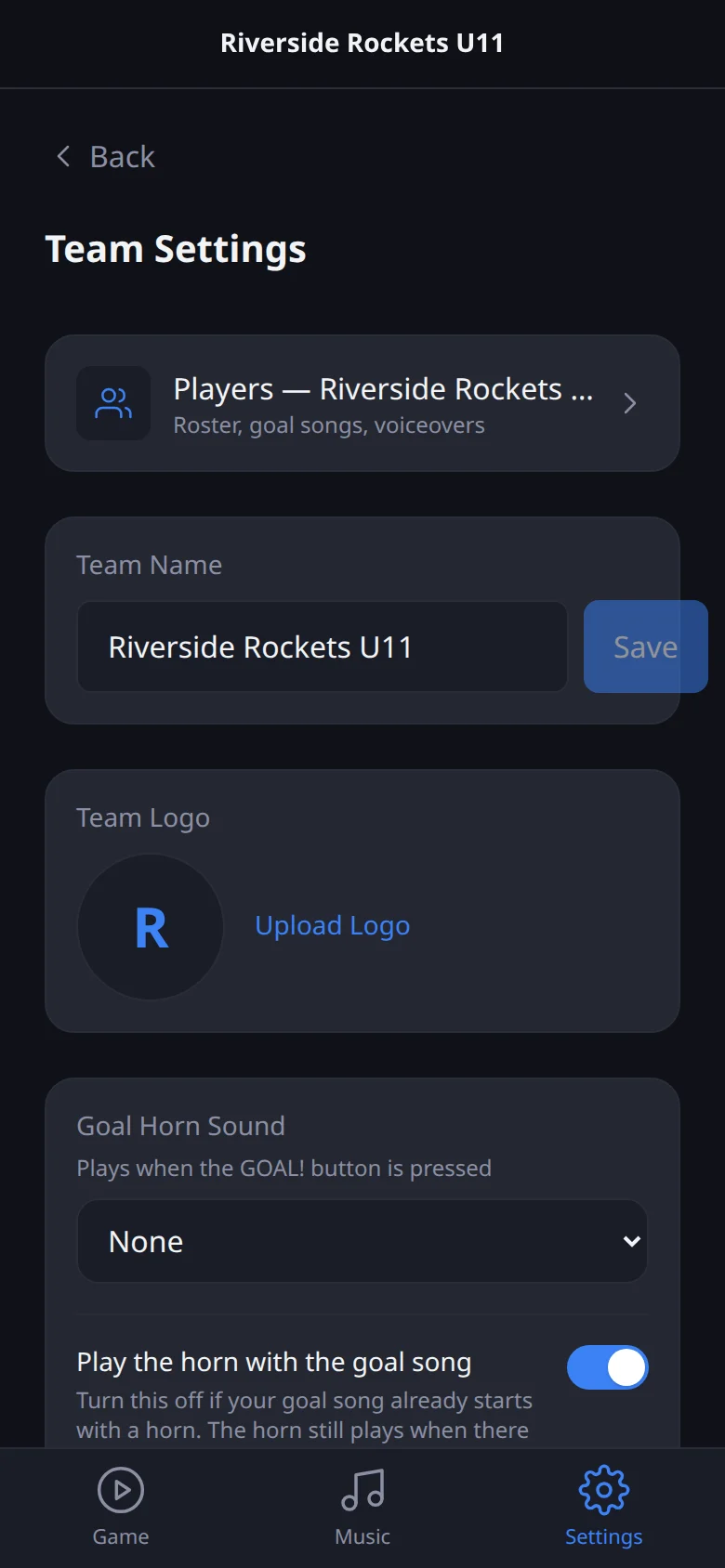
Go to Settings and tap your team. Under Team Logo tap Upload Logo.
Further down, Goal Horn Sound is the horn that plays on every goal, and Default Goal Song is the song for any player without their own. You can come back to these later.
Invite another DJ or a coach
In your team's settings, scroll to Team Members. Type their email, pick DJ (can run the music and change things) or Viewer (can see it but not change it), and tap Send Invite.
Heads up: Rink Rocks doesn't email the invite. Tell them to sign up using that exact email address. The invite is waiting for them as soon as they sign in.
Screens and video checked against the app on 2026-10-18.